This is the process for submitting an Add-On Subcontracts on an existing award.
An Add-On Subcontract is an outgoing subaward that was NOT part of the original proposal. Pursuant to new NIH guidance as of June 1, 2026, all Add-On Subs must receive agency approval.
Therefore, all Add-On Subs must be submitted to and approved by OSP prior to being submitted to the contracts office. To start, you'll need the Coeus Proposal Development number for the awarded proposal.
IMPORTANT: This is a change both in policy and process. Previously, an Add-On was added directly to the G-log for the original proposal. Going forward, Add-Ons are their own separate G-log but re-using the same proposal number from the original.
This guide assumes you have previously created a Coeus proposal for the Grant Application that has already been submitted and awarded. You'll begin by finding the PEER G-Log for that proposal. From here there are two ways forward:
1. Copy the Coeus Dev Proposal Number and use it to create a new Add-On Subcontract Log, or
2. Go to the Sub-organizations tab of the original PEER G-Log, and click the "Add an Add-On Subcontract" button, which will automatically open a new Add-On Subcontract Log form with the Coeus Dev Proposal number pre-filled.
Find your original proposal log
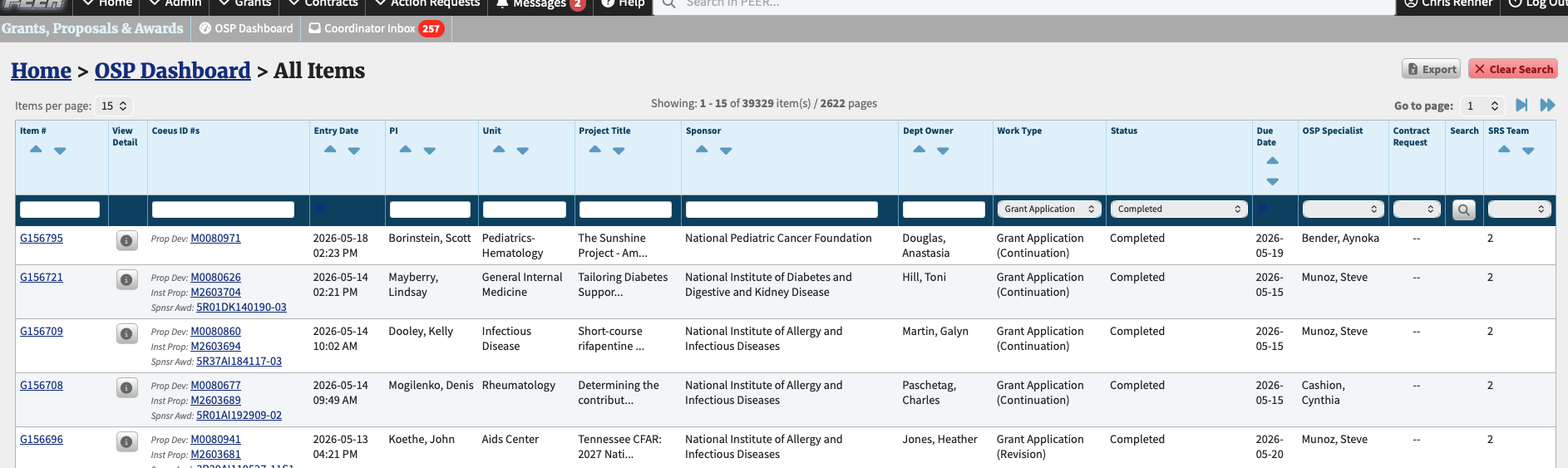
In the OSP Proposal Management module, go to All Items to search your G-Logs. You should be able to search for logs on awarded proposals using the Coeus Dev Proposal Number, Institute Proposal Number, or Sponsor Award Number (grant number).
Option 1:
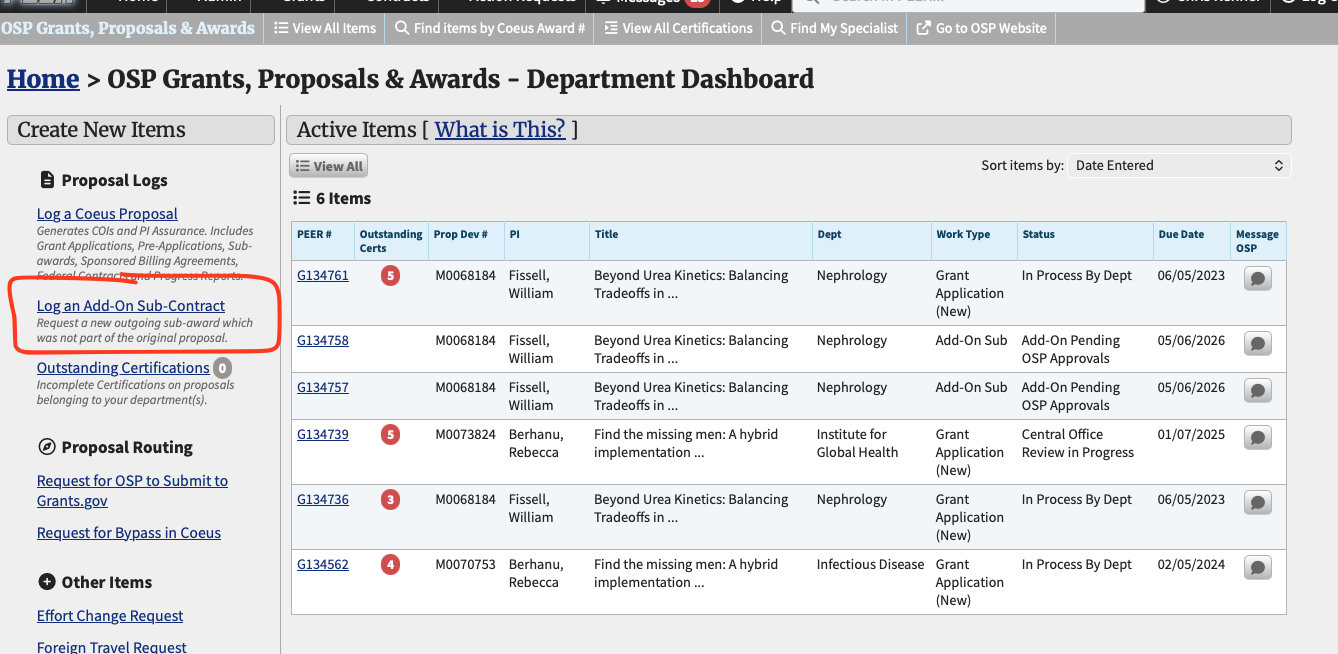
Copy the "Prop Dev" number for the proposal G-log, then Go to the Add-On Subcontract form, which can be found in the Grants Navbar Menu or on the OSP Proposal Management Dashboard:
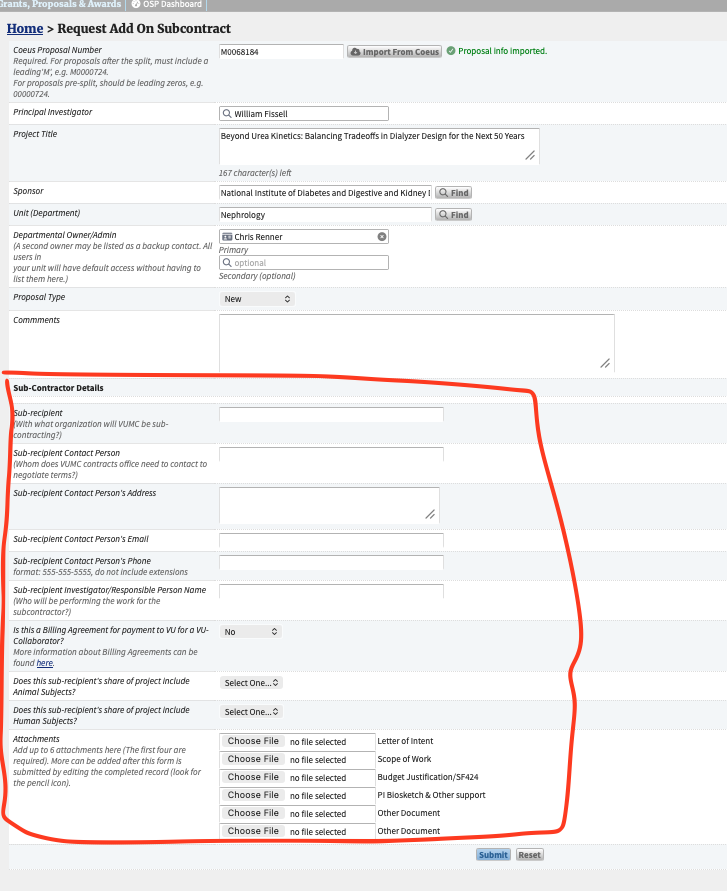
As with other PEER logs, enter the Coeus Prop Dev number and click "import" The general information will populate. Below that is the sub recipient form. Fill out all fields and submit.
Option 2
Open the PEER G-log for the original proposal.
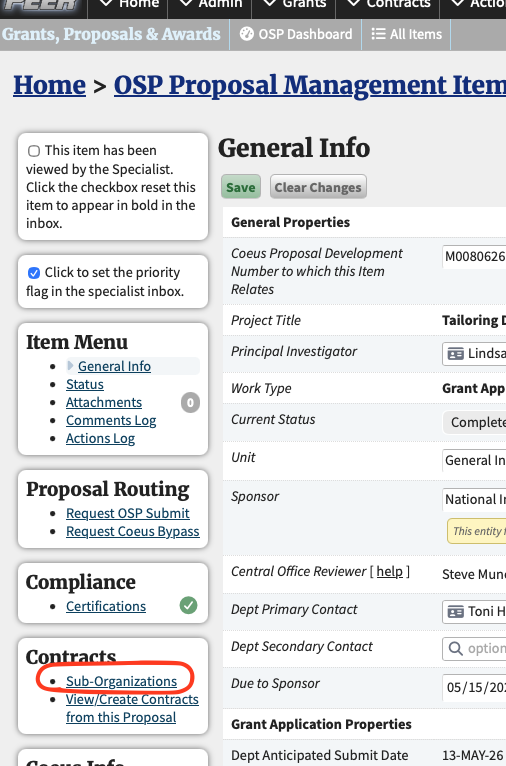
In the left-side menu click on the Sub-Organizations tab.
Linked Contracts
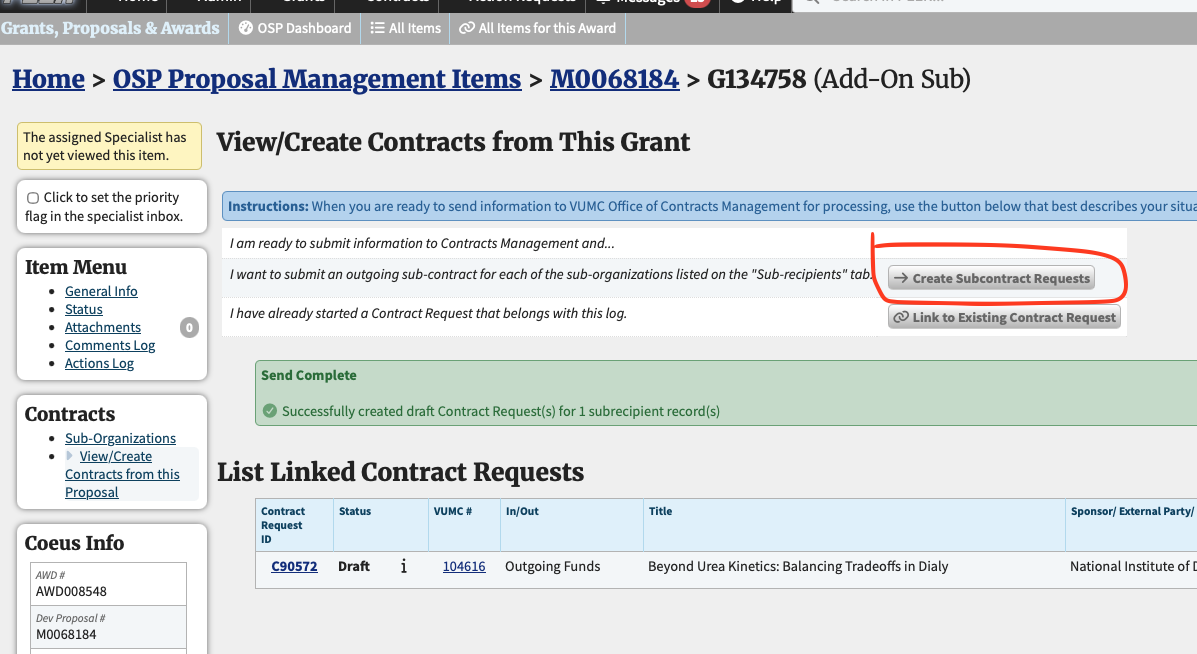
On this tab, click the button "Create contracts from sub-recipients"
There should only ever be one sub-organization on a single Add-On log. Clicking this button will therefore create one OCM contract request, in draft status. The sub-organization information will copy into the contract request.
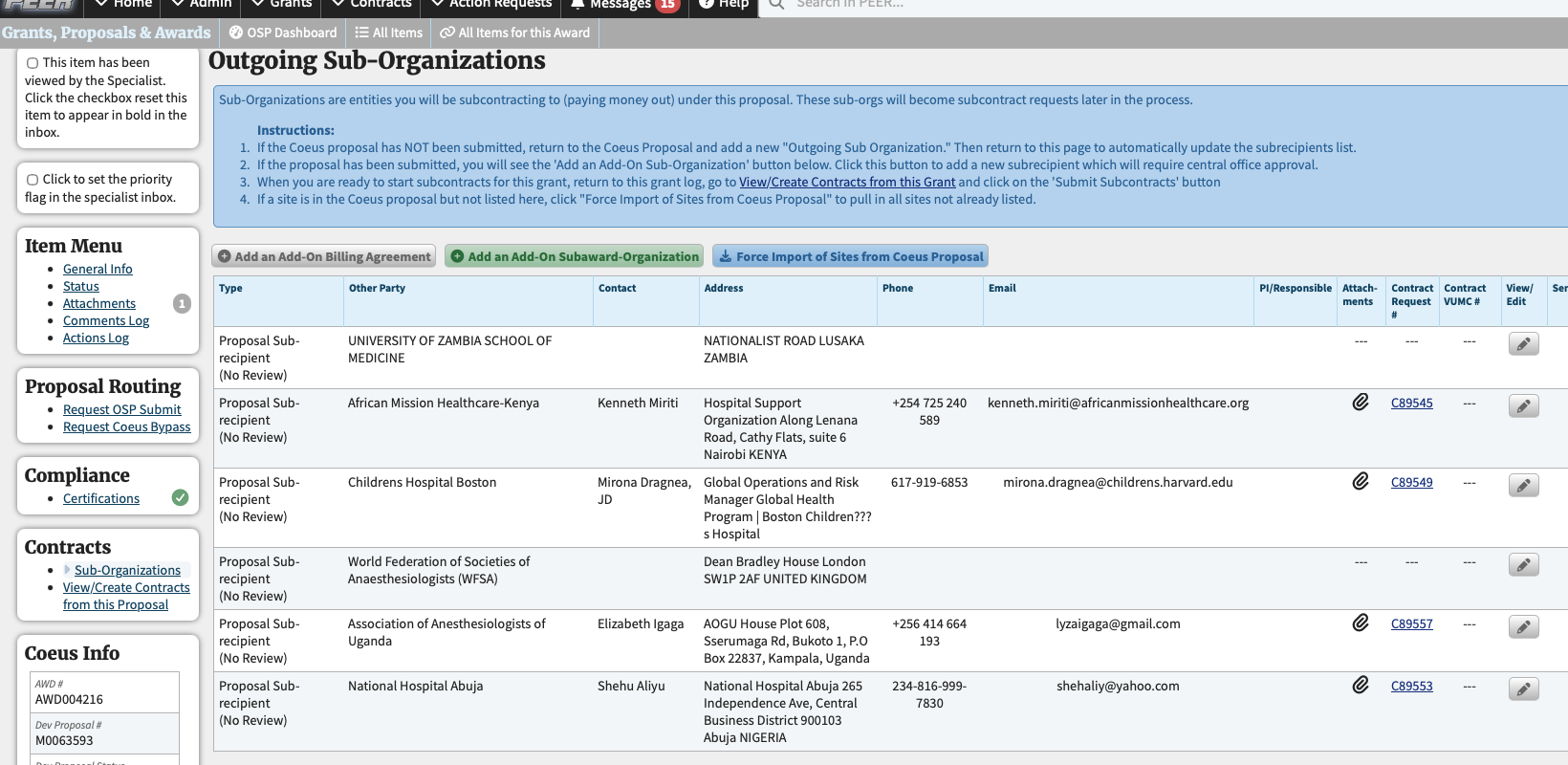
The Sub-Orgs tab should contain the subcontractor organizations listed in the original proposal. You'll be adding a special new entry here for the SBA.
To create the Add-On, click on the green "Add an Add-On Subaward Organization button."
This will open a new Add-On intake form (getting you to the same place that Option 1 gets you to, just without having to cut & paste your Coeus #). In this option, the Coeus number is pre-filled along with the general information. You'll just complete the Sub-Contractor details and submit.
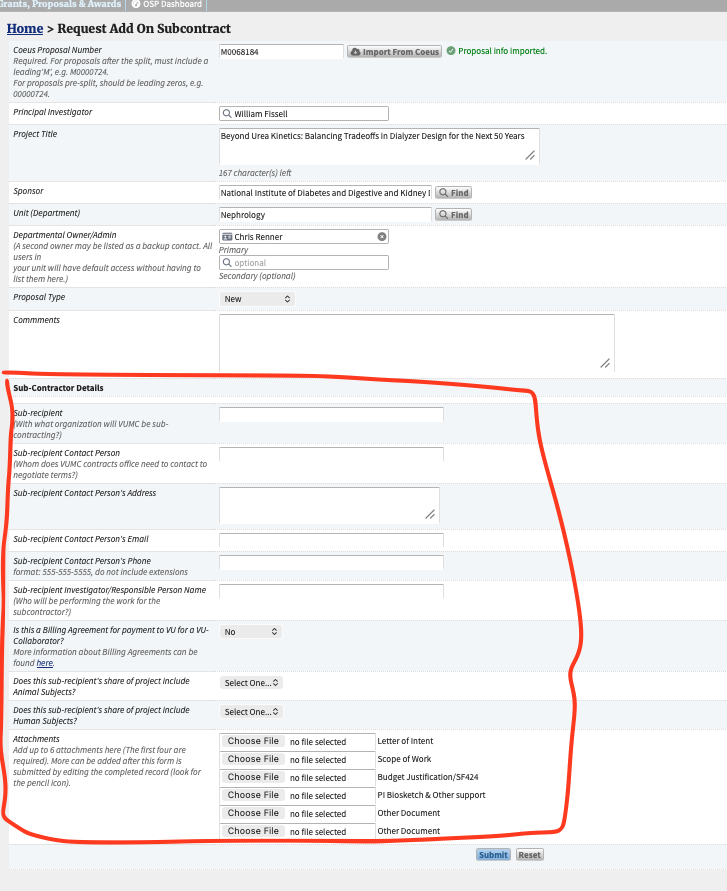
IMPORTANT: Letter of Intent, Budget Justification/SF424, and PI Biosketch & Other Support are all required to be uploaded so that OSP can provide for agency review.
Once you have submitted your Add-On Log, you'll find it in your OSP "All Items" list with a status of Submitted to Central Office. Once specialist review begins, it will change to Central Office Review in Process.
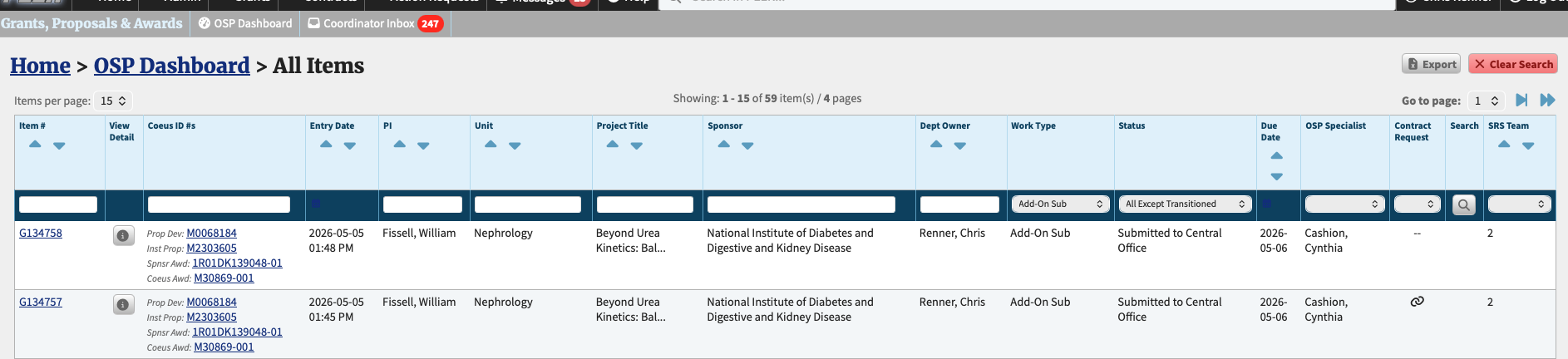
Submitting the contract to OCM:
Once your Add-On Log has been created, you can create the linked OCM contract request AT ANY TIME. But you will not be able to submit the request until OSP has received agency approval for the add-on and marked the Add-On PEER log "approved".
If you do not start the contract request early, then when OSP approves the add-on log, a draft contract request will be created for you at that time.
To create the contract request:
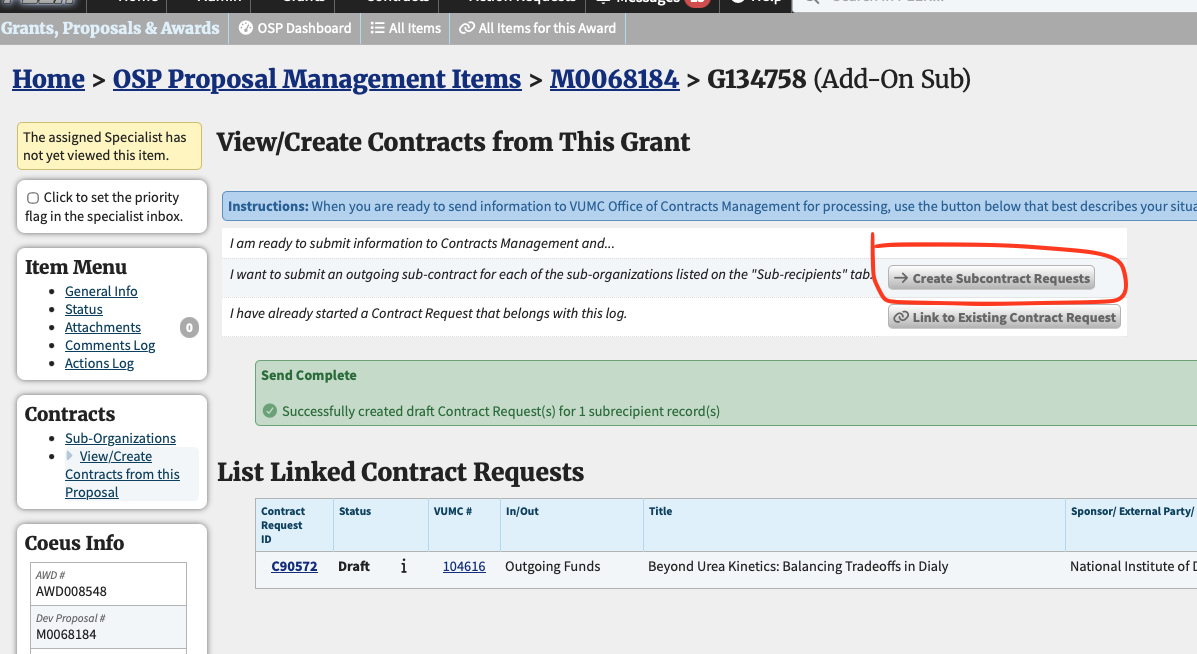
In the Add-On log, click on View/Create Contracts from this Proposal:
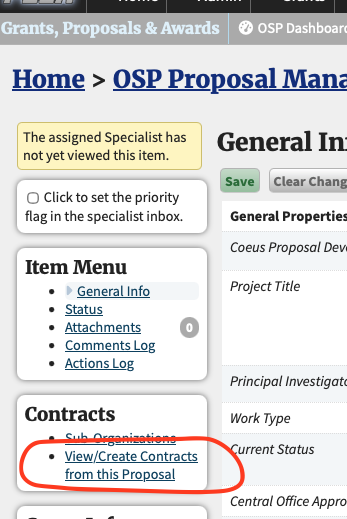
On this tab, you have some options:
1. If you HAVE NOT already started a contract request, click on "Create Subcontract Requests". This option will create a new contract request in Draft status. All the information from the Add-On log will copy over. You will then need to complete contract request. You will NOT be able to submit it to OCM until OSP has approved the add on.
2. If you have already started a contract request and just need to link it to this add on, click "Link to Existing Contract Request" and search by the Contract Request "C" number.
3. You can do nothing, and wait for OSP to approve the add-on. At this time, if no contract request is linked, one will be auto-created for you.
In the example below, I've already created the request, and you can see it in the "List Linked Contract Requests".