
This is the process for adding a Sponsored Billing Agreement ONLY. For an Add-On Subcontract, see this article [put link here.]
Sponsored Billing agreements are contracts with VU for certain kinds of collaborations using VU faculty/staff that DO NOT meet the threshold of a subaward (substantive participation in the sponsored activity).
SBAs must be approved by OSP prior to being submitted to the contracts office. To start, an SBA needs to be added on to the existing PEER G-log for the awarded proposal
This guide assumes you have previously created a Coeus proposal for the Grant Application that has already been submitted and awarded. You'll begin by finding the PEER G# for that proposal log, or use the Coeus Proposal Development number or IP number to search and find the PEER Log.
Since Add-On SBAs outgoing spend on an award to VUMC, PEER will only allow you to add an SBA to a Grant Application log (PEER will not let you put an Add-On SBA onto add an add-on to a Subaward log).
Find your original proposal log
In the OSP Proposal Management module, go to All Items to search your G-Logs. You should be able to search for logs on awarded proposals using the Coeus Dev Proposal Number, Institute Proposal Number, or Sponsor Award Number (grant number).
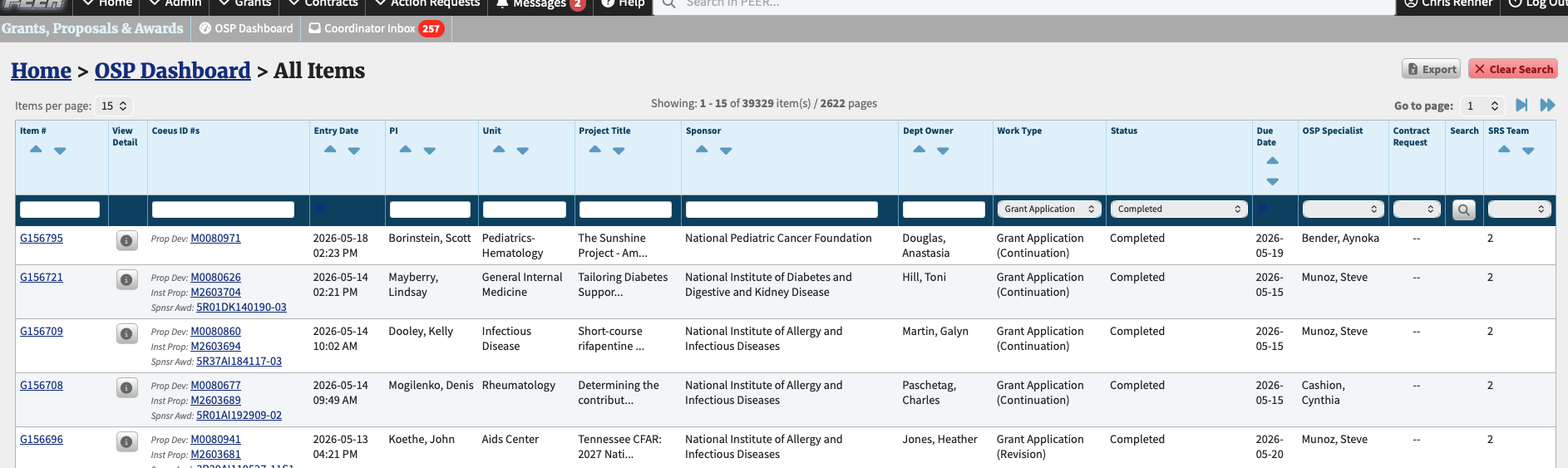
Once you've found the right log, click on the log's G number on the left hand side to view it in detail.
Find the Subrecipients Tab
Click on the Sub-Organizations link on the left side menu, under Contracts.
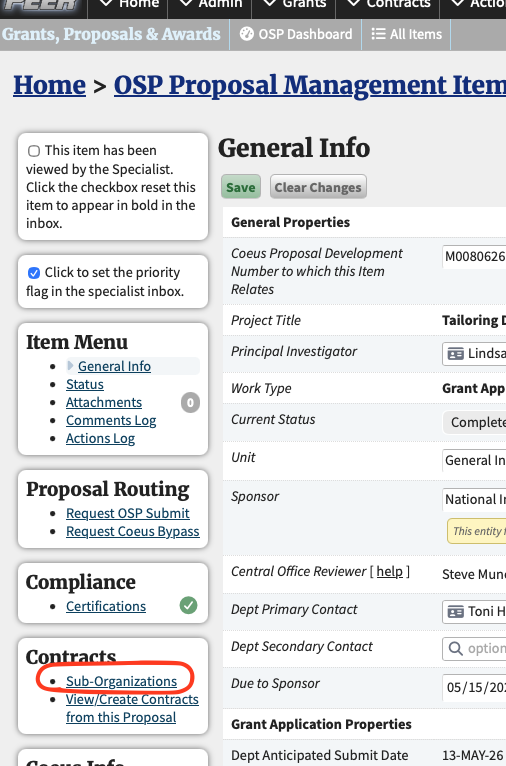
Sub-Organizations tab
The Sub-Orgs tab should contain the subcontractor organizations listed in the original proposal. You'll be adding a special new entry here for the SBA.
To add the new subrecipient SBA, click the "Add an Add-on Billing Agreement" button.
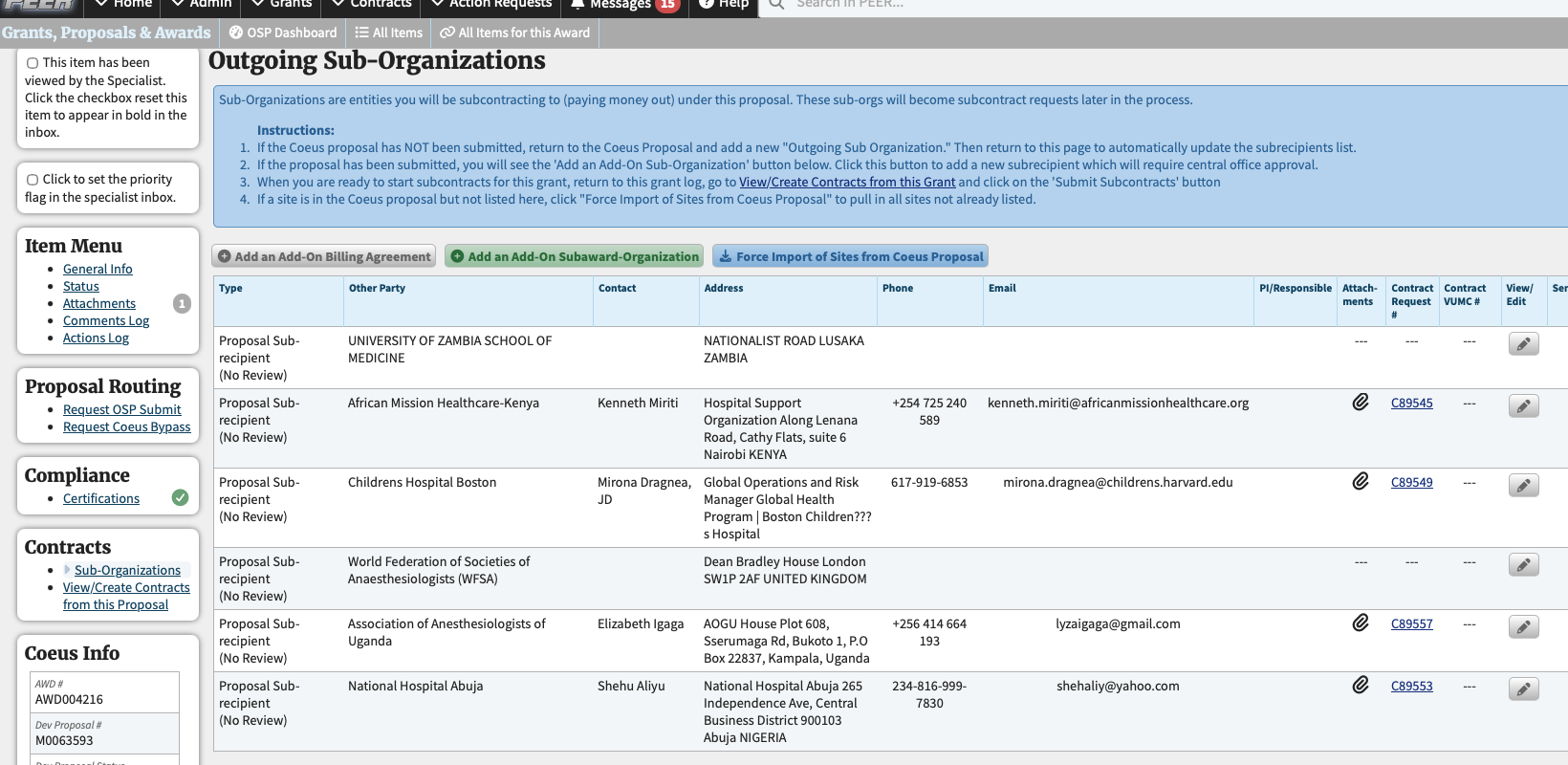
Add the Subrecipient Information
Complete all fields (address is not required) and then click save. Please note that the Subrecipient organization must be chosen from the drop down list that will appear once you begin typing. If you do not see the organization you need, click the "Request a New Entry" link that will appear above the text field.
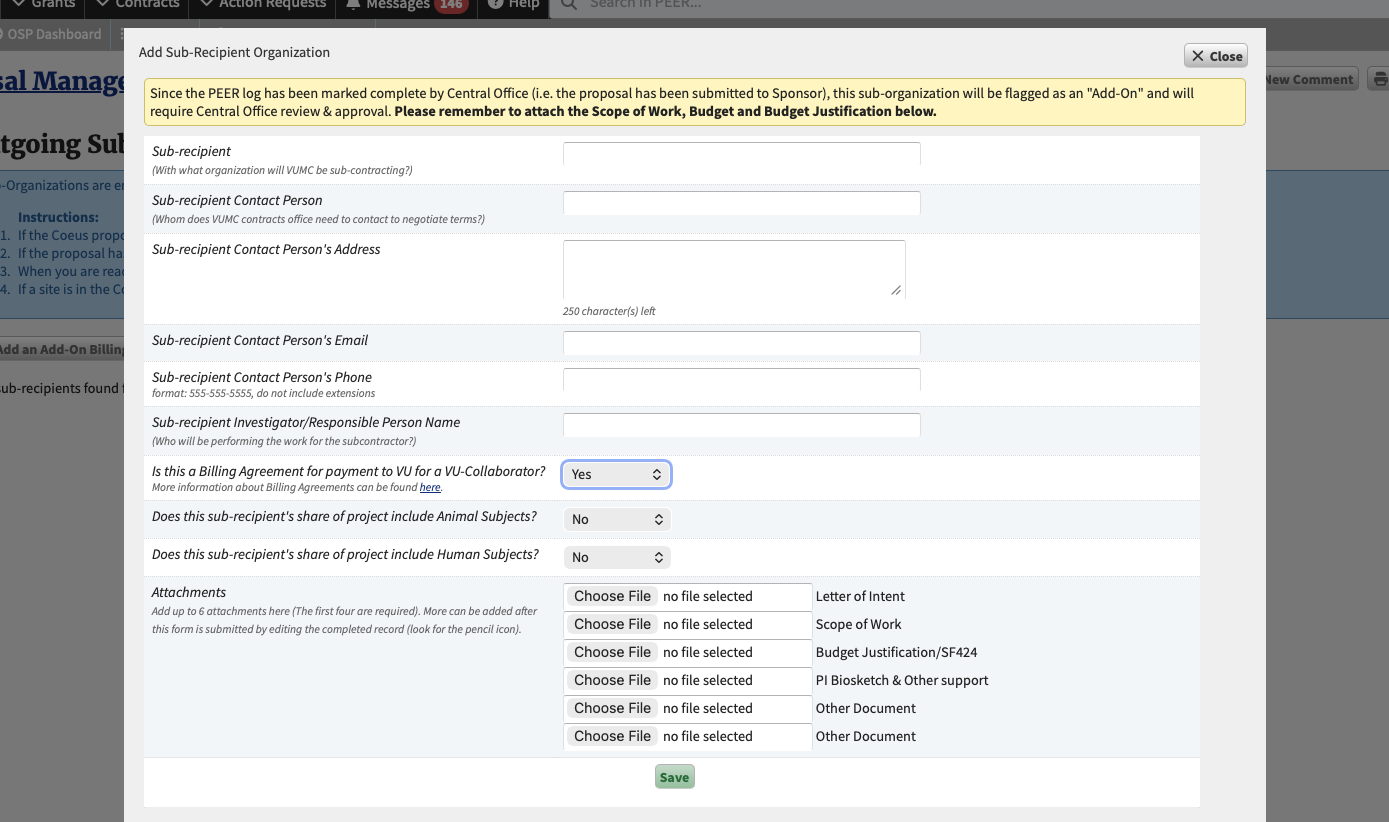
Also please note that you must include the Scope of Work, Budget and Budget Justification for the add-on so that central office can review.
For billing agreements where VUMC is paying VU for a VU-faculty/employee to collaborate on a VUMC project, please indicated Yes here. If you attempt to create a Billing Agreement with a sub-recipient other than VU, PEER will throw an error. For a standard sub-contract/subaward to VU, you would just answer "No" to the billing agreement question.

Here's the filled-out subrecipent form, set up as a VU Billing Agreement. Click Save.
Reviewing the completed add-on
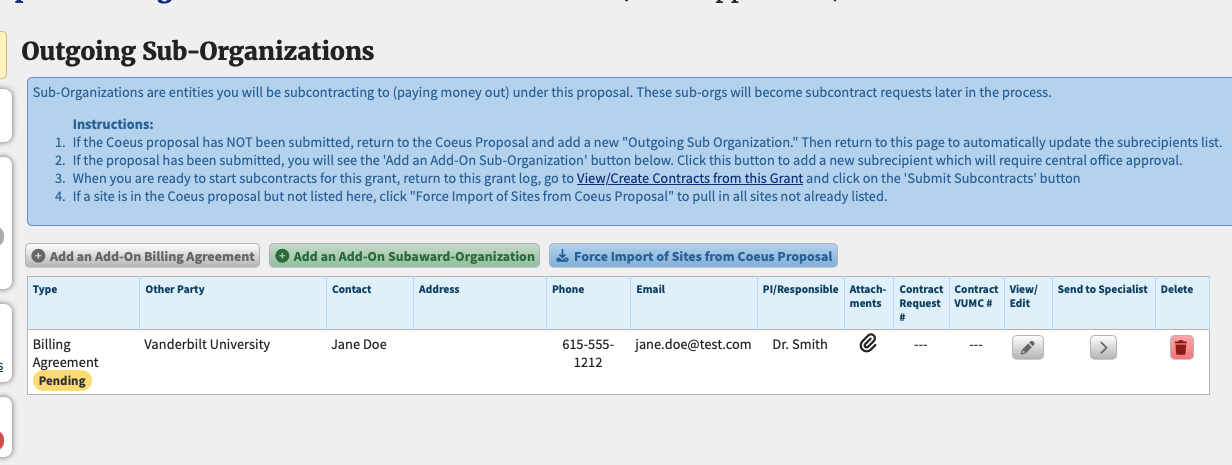
The Billing Agreement has now been saved. Notice the yellow "Pending" alert in the first column. This indicates the Billing Agreement has not been approved by OSP.
Why does OSP have to review the billing agreement?
Since this contract was not part of the original proposal, it was not reviewed with the rest of the application. OSP will review it now to ensure it is consistent with the proposal and meets sponsor requirements. This must happen BEFORE the sub can be submitted to OCM in Contracts-PEER. You can start your contract request and begin filling it out, but it will be stuck in draft status until this billing agreement Sub-organization has been approved.
Your designated central office reviewer (OSP Specialist) will then review and approve the billing agreement. You will get an email when the approval takes place, and--if you have not already started one--a Draft contract request will be automatically created in PEER and the information from the add-on will be copied into that draft.
You'll receive an email notification from PEER informing you to log in and finish the Draft contract request and submit to OCM for processing. If you return to this screen, you can enter the contract request by clicking the link with the C#
The add-on after it is approved by central office
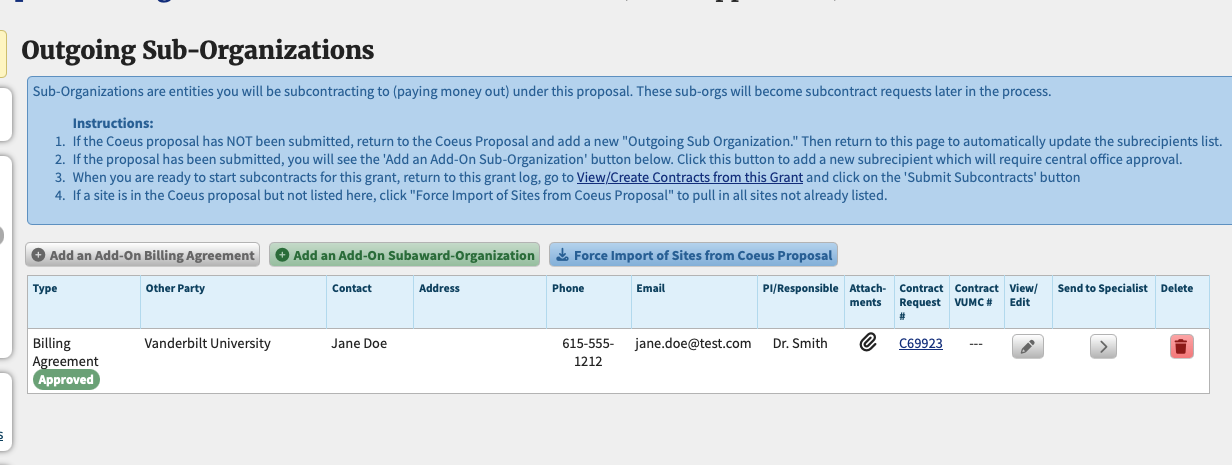
Notice two things about the now-approved Billing Agreement: (1) The status is now green, and (2) This sub-organization now has a contract request ID.
You will need to log in to PEER, complete the contract request and then submit it so OCM can review and set up as a new contract file.
You can view a list of all contract requests linked to this proposal by going back to the "View/Create contracts from this proposal" link on the left side menu.
Viewing linked Contract Submissions

You can see in the above example that a draft contract submission has already been created and linked to the Proposal log for the original subrecipient as well as the newer Add-On.
To view the contract submission (and complete & submit it), click on the submission ID number as shown. If for some reason the wrong contract submission has been linked, you may request breakage of the link by clicking the "Remove" button in the far right column.
For instructions on creating and submitting a contract request, please refer to the guide Submit a Contract to OCM, Part 1.